
Hongguo Downloader's built-in player, explained
v1.0.0.54 added a real player inside Hongguo Downloader itself, so you no longer have to hand off downloaded episodes to a separate video app. It auto-plays episodes back-to-back, remembers exactly where you left off on every series, pre-loads the next episode for instant jumps, and gives you keyboard shortcuts, 0.5×–2× speed control, and Picture-in-Picture. It all runs on the .mp4 files already saved to your PC — no internet needed to watch.
Before v1.0.0.54, downloading a series with Hongguo Downloader meant opening the finished .mp4 files in whatever media player you already had — VLC, the Windows default, anything. That still works, but the app now has its own player built in, and it's worth knowing what it actually does before you go looking for the buttons.
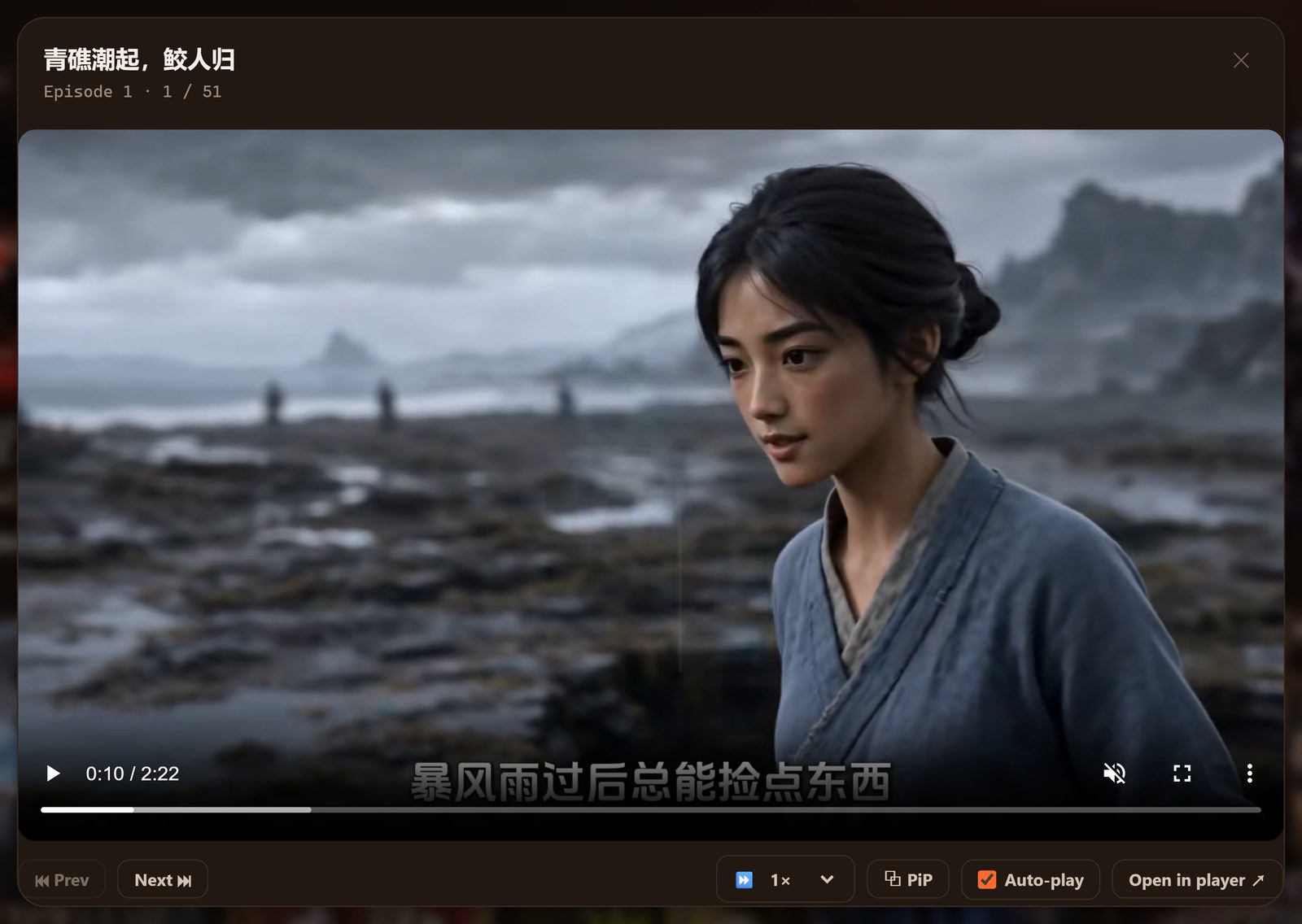
What actually changed in v1.0.0.54
The player sits on top of your Library — the poster shelf every download lands in. Instead of switching to a separate app, you now play a downloaded episode straight from its card. Here's what that gets you:
- Auto-play next episode. Episodes roll on their own, back-to-back, so a full series plays through without you reaching for the mouse between every episode.
- Resume, remembered per series. Stop in the middle of episode 12 and come back tomorrow — the library card itself shows "Resume E12", and picking it up drops you back at that exact point.
- Pre-loaded jumps. The next episode is already buffered in the background, so skipping ahead doesn't come with the usual loading pause.
- Keyboard shortcuts. → and ← move to the next or previous episode, and Space pauses or resumes — no need to hunt for on-screen buttons mid-binge.
- Speed control, 0.5×–2×. Slow down a scene or speed through filler, adjustable right from the control bar.
- Picture-in-Picture. Pop the video into a small floating window and keep watching while you do something else on your PC.
How to use it
- Open Library — the poster shelf of everything you've already downloaded.
- Tap the series you want. If you've watched part of it before, the card already shows where you'll resume.
- Hit Play. The built-in player opens and starts from your last position (or the beginning, for a series you haven't started).
- Use → / ← to move between episodes, Space to pause, the speed control for 0.5×–2×, and the Picture-in-Picture button to pop it out.
- Just close the player or switch tasks whenever you're done — your spot is saved automatically for next time.
Why a built-in player, when any video app already plays .mp4
Nothing stops you from opening a downloaded episode in VLC or the Windows default player — the files are plain .mp4 either way. The difference is everything that doesn't carry over when you leave the app: a separate player has no idea which episode you stopped on last time, doesn't know to queue up the next one, and won't show you "Resume E12" on a poster the next time you open Hongguo Downloader. Keeping playback inside the app is what makes resume-per-series, auto-play, and pre-loaded jumps possible in the first place — they all depend on the app already knowing your library and your position in it.
Frequently asked questions
Do I need an internet connection to use it?
No — it plays the .mp4 files already saved on your PC, so it works fully offline once a series has downloaded.
What are the keyboard shortcuts?
→ and ← jump to the next or previous episode, and Space pauses or resumes playback.
What speeds can I play at?
Anywhere from 0.5× up to 2×, adjustable from the player's control bar.
Does Picture-in-Picture work while I use other apps?
Yes — popping a video into Picture-in-Picture keeps it playing in a small floating window while you work in something else.
Which version added the built-in player?
v1.0.0.54. Earlier versions saved .mp4 files for you to open in any player on your PC; v1.0.0.54 added a real player inside the app itself.
Try the built-in player yourself
Download a series with Hongguo Downloader and hit Play from your Library — auto-play, resume and Picture-in-Picture included, free.