Fixing a tiny (or oversized) window on 4K & high-DPI screens
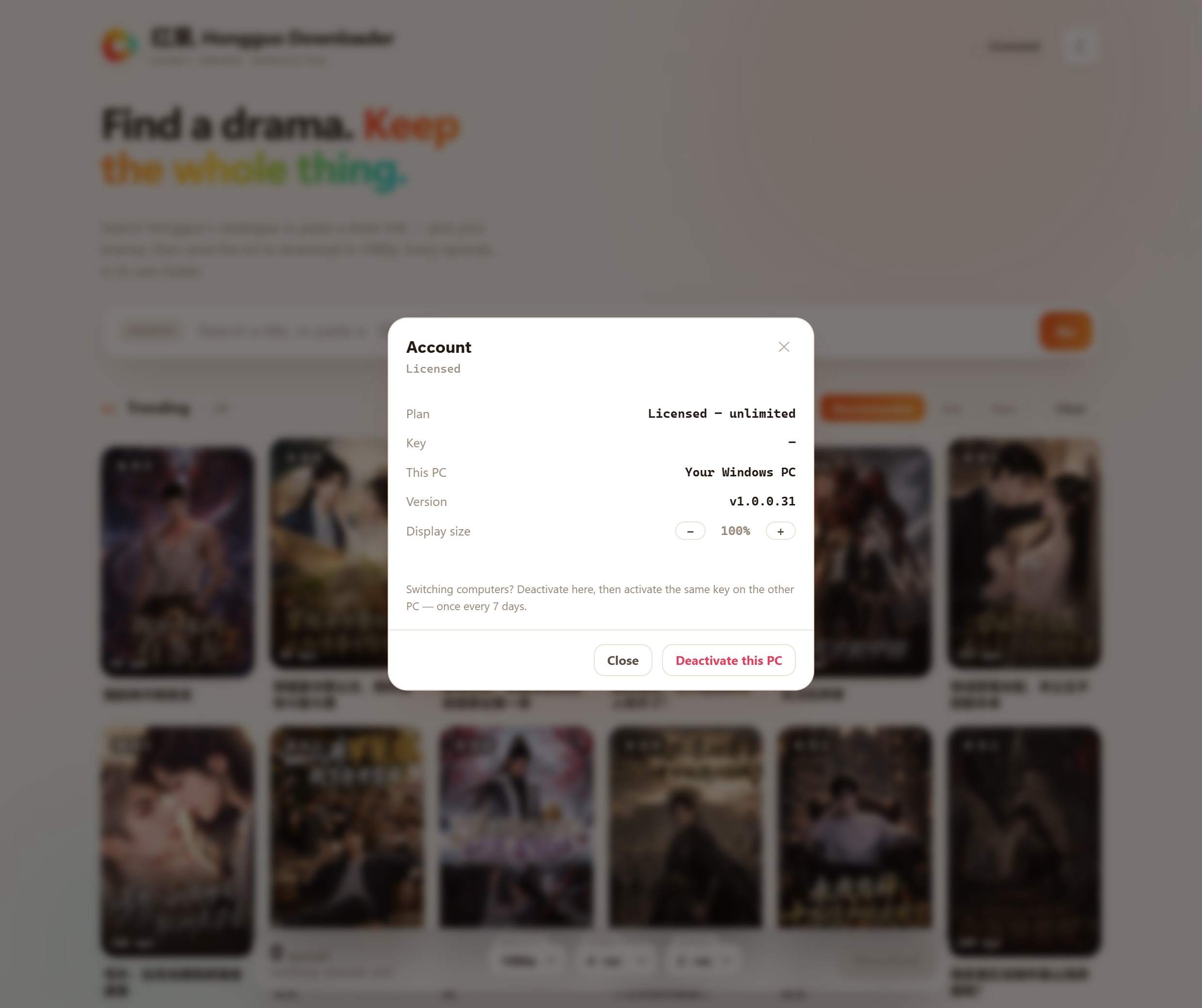
Hongguo Downloader has its own Display size control, in the Account panel — a simple − / + stepper that scales the whole app up from its 100% default toward 200%, so text, buttons, and poster art stay a comfortable size on a 4K or other high-DPI monitor. If the app (or everything else on your PC) looks tiny or blurry on that monitor, check Windows' own display scaling first — it's usually the bigger fix — then use the in-app control to fine-tune Hongguo Downloader specifically.
A 4K monitor packs four times the pixels of 1080p into roughly the same physical size, which is great for sharpness and terrible for anything that doesn't scale — text and buttons that were readable at arm's length on a 1080p screen can shrink to nearly unreadable at native resolution on a 4K one. Here's how to get Hongguo Downloader back to a comfortable size, and why there are actually two settings involved, not one.
Why this happens
Every desktop app draws its window and text at a certain number of pixels. On a 1080p (1920×1080) monitor, that's fine — the physical size of a pixel and the resolution roughly match what looks normal. On a 4K (3840×2160) or other high-DPI panel, the same pixel count now covers a much smaller physical area, so anything drawn "at 100%" ends up visually tiny unless something scales it back up. Windows solves this system-wide with its own display scaling setting, and Hongguo Downloader adds a second, app-specific Display size control on top of that for extra control.
Step 1: check Windows' own display scaling
This is the setting to fix first, because it affects every app on your PC, not just this one — if everything on your desktop looks tiny (or Windows already auto-scaled things and now they look blurry), this is almost always the cause.
- Right-click an empty part of the desktop and choose Display settings (or open Settings > System > Display).
- Under Scale, pick the value Windows recommends for that monitor — it's usually already suggesting the right one for a 4K panel, commonly somewhere in the 150%–200% range depending on screen size.
- Sign out and back in (or just restart the apps you have open) so the new scale applies everywhere, including to Hongguo Downloader.
If Windows' recommended scale already makes Hongguo Downloader comfortable to read, you're done — you don't need to touch the app's own Display size control at all.
Step 2: fine-tune with the app's Display size control
If the app still feels a little too small — or you'd simply rather scale Hongguo Downloader on its own instead of relying on Windows' system-wide setting — use the app's dedicated control:
- Open Hongguo Downloader and click into the Account panel.
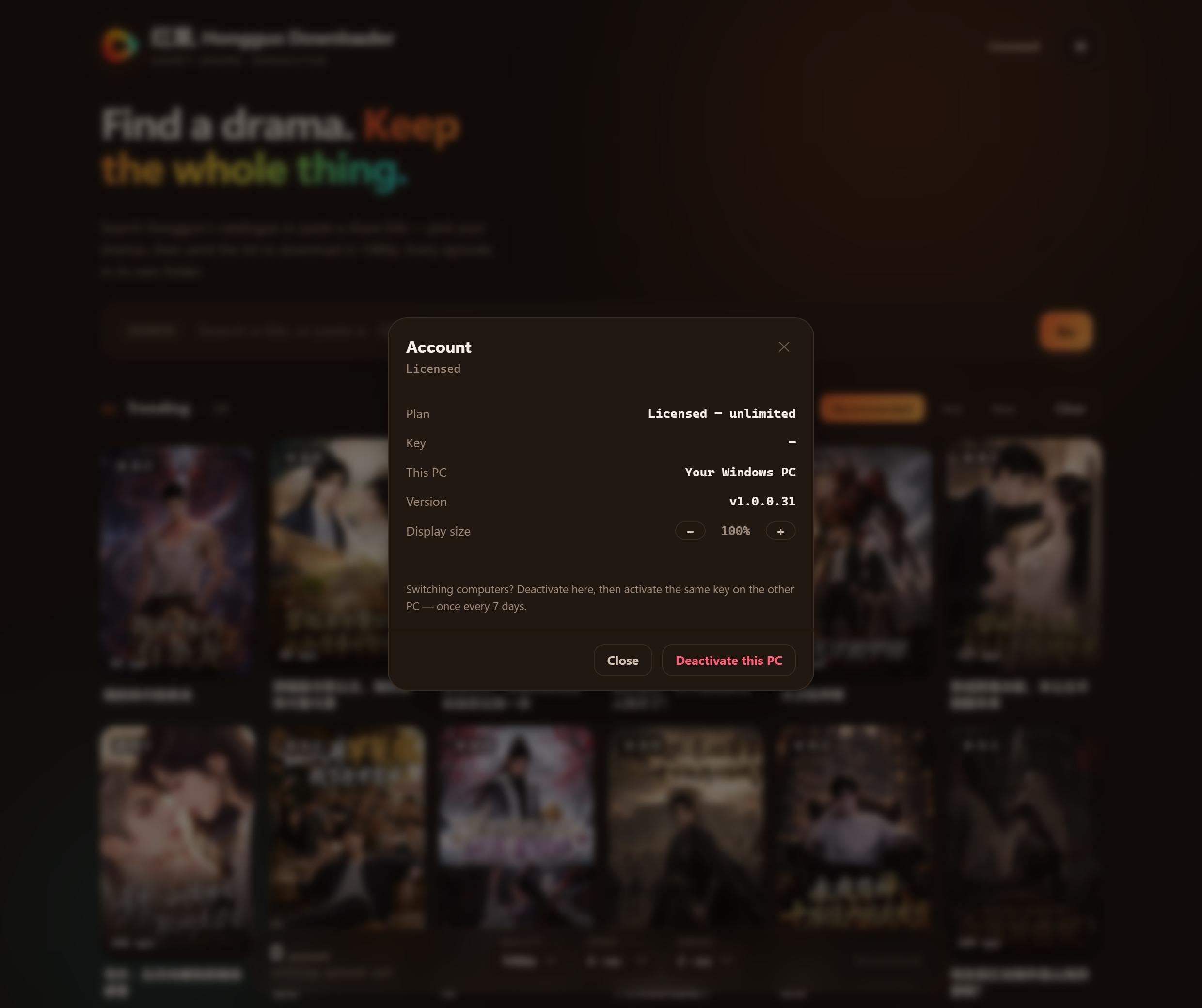
- Find the Display size row, showing a percentage (100% by default) with − and + buttons on either side.
- Tap + to step the whole app up toward 200% until text, buttons, and the poster grid feel comfortable on your screen; tap − to step back down.
- Close the panel — the new size applies immediately, no restart needed.
This control is useful even outside 4K monitors — a laptop with a small, high-resolution screen, or simply preferring larger text while you browse the poster wall, are both good reasons to bump it up regardless of your exact display specs.
Still looks blurry, not just small?
Small and blurry are different problems with different fixes. If the app looks the right size but slightly soft or fuzzy, that's typically a leftover Windows scaling mismatch rather than anything the in-app control can fix — double-check that the Windows scale value from Step 1 is actually applied to the monitor Hongguo Downloader is open on (multi-monitor setups with different scales per screen are the most common cause), then reopen the app.
.mp4 file regardless of what percentage you're viewing the app at.Frequently asked questions
Where is the Display size setting?
In the Account panel — use the − and + buttons next to Display size to step the app from 100% up to 200%, and back down again.
Should I use the app's Display size or Windows' scaling?
Try Windows' display scaling first — it fixes every app on a high-DPI monitor, not just this one. Use the in-app control afterward for extra fine-tuning.
Does Display size affect download quality?
No — it only changes how the app's window renders on screen. Downloaded episodes still save at full 1080p regardless.
Why does it look blurry even after scaling?
That's usually a Windows scaling mismatch, not an app issue — confirm the correct scale is applied to the monitor the app is open on in Settings > System > Display, then reopen it.
A comfortable fit on any screen
Download Hongguo Downloader and dial in a Display size that works for your monitor — from a small laptop panel to a 4K desktop screen.