
Moving your downloaded dramas to a new PC, phone, or drive
Your downloaded episodes are ordinary .mp4 files sitting in a folder you chose — there's no proprietary container and no DRM. Moving them anywhere is just copying files: drag the folders to a new PC, an external drive, a NAS, or across to a phone, and they play. The one thing that isn't a simple copy is your license key, which moves between PCs through the app itself, once every 7 days.
A downloader that locks your files to one machine defeats the point of downloading them. Here's exactly what to do for each destination — new computer, drive, or phone — and the one step people forget: moving the license, not just the videos.
Why this is simpler than it sounds
Every episode Hongguo Downloader saves is a plain, playable .mp4 file, one per episode, filed into its own folder per drama under the output location you picked when you downloaded it (your Videos folder, by default). Nothing about that file format is tied to the app, to your PC, or to an account — it's the same kind of file any video player already knows how to open. That's why moving your library is a filesystem operation, not something that needs a special "export" feature.
Moving to a new PC
- Copy your output folder. Find the folder you've been downloading into (check the app's download settings if you're not sure), and copy the whole thing — every per-drama subfolder — to the new PC via an external drive, a network share, or cloud storage.
- Install Hongguo Downloader on the new PC. Grab the installer from the official GitHub release — no account needed.
- Point it at the same folder, or drop the copy into its default one. Either set the app's output folder to where you placed the copied files, or copy them into whatever output folder the fresh install is already using.
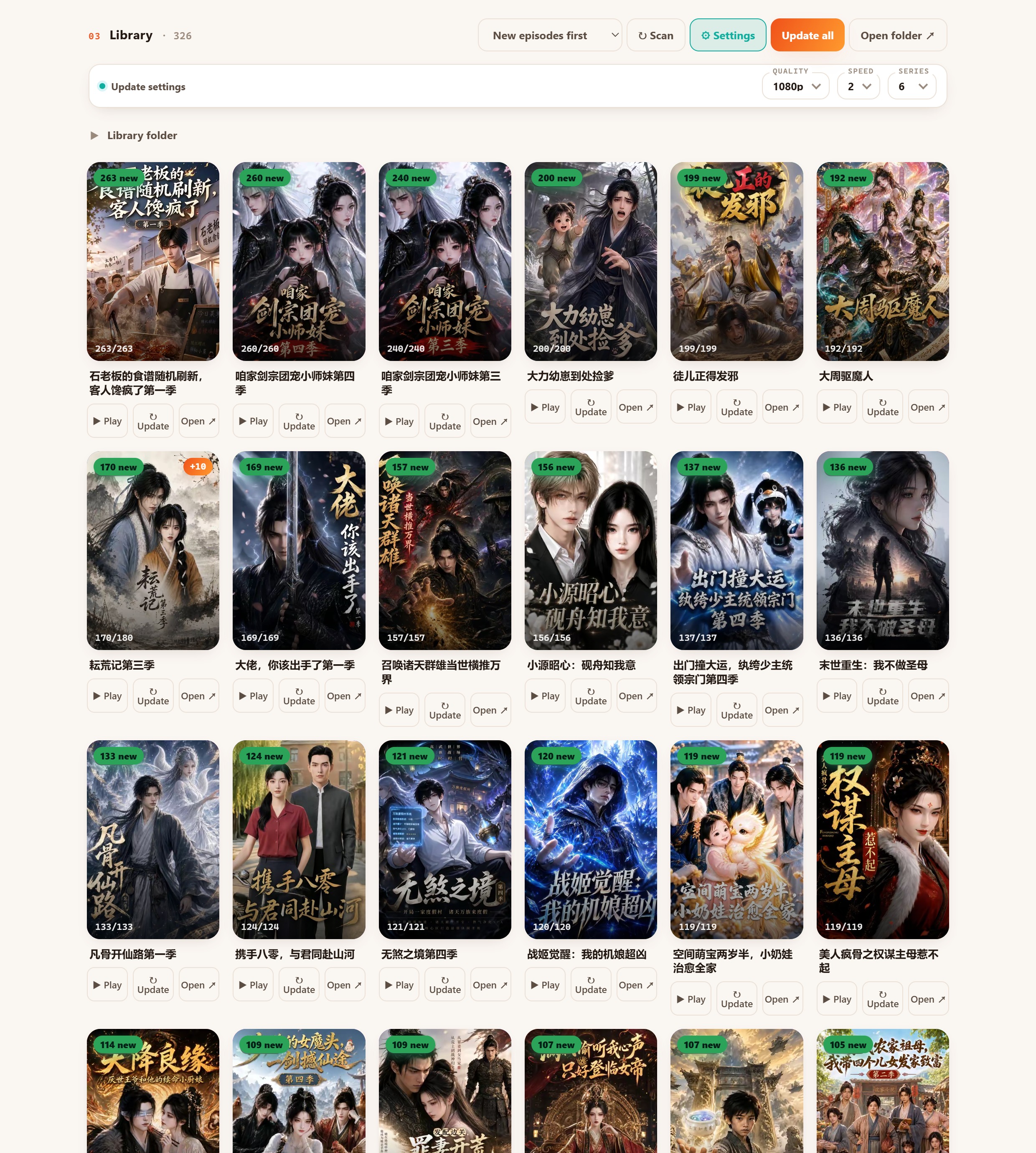
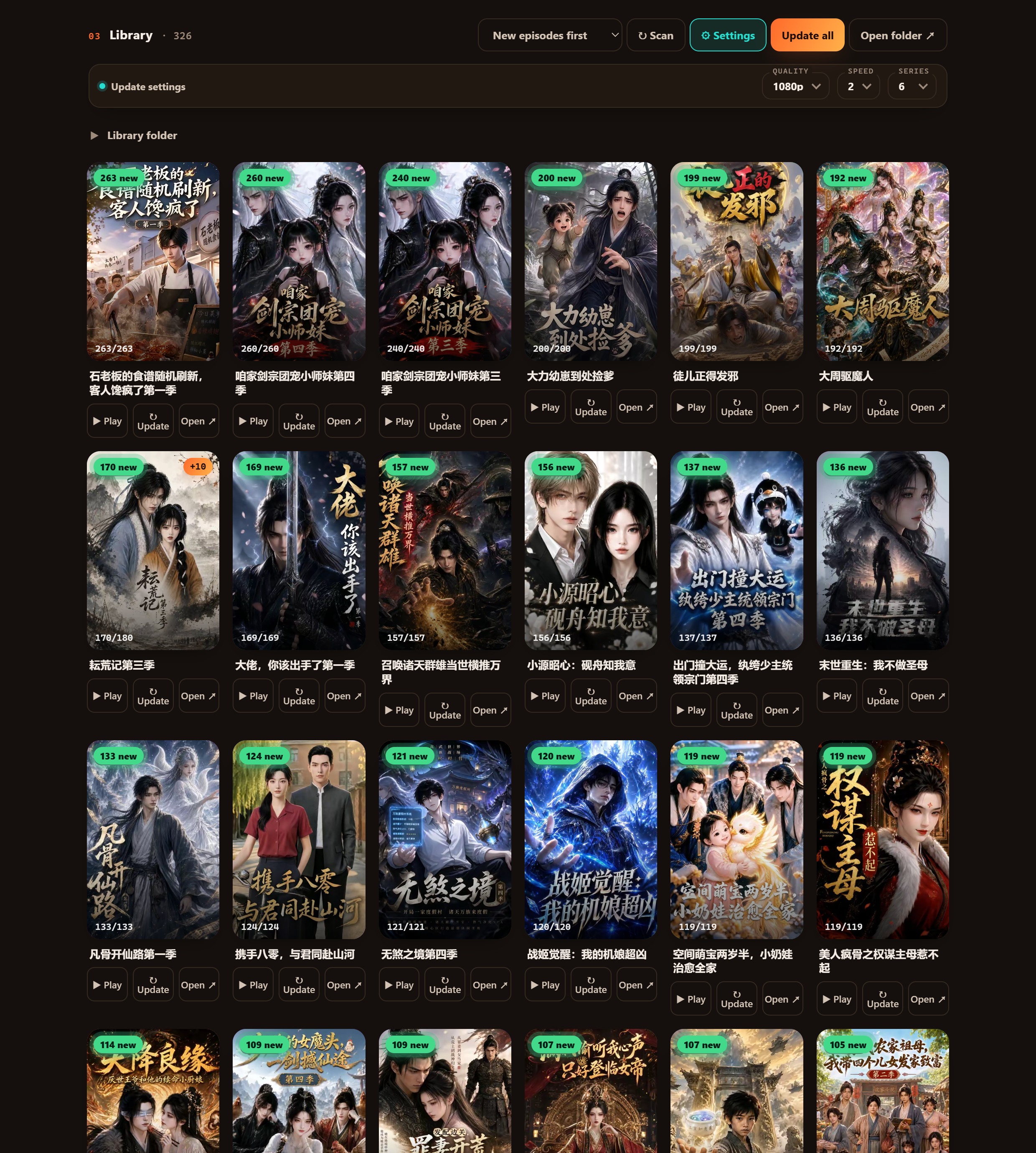
- Open the Library. It rebuilds its poster wall from whatever video files it finds on disk — your existing episodes should show up without re-downloading anything.
- Move your license key, separately. A key activates one PC at a time. You can move it to the new machine yourself from inside the app — but only once every 7 days, so don't do this back and forth casually.
If you're on the free tier with no key, there's nothing to move on that front — just the files.
Moving to an external drive or NAS
This is the same idea, minus the reinstall. Copy or cut your per-drama folders onto a USB drive, an external SSD, or a NAS share exactly like you would with any other video collection. If you want the app to keep managing that same location — say, you want Update all in the Library to keep finding new episodes for a series — set the app's output folder to that drive's path instead of your local disk, and it'll download future episodes straight there.
Watching on a phone or tablet
Hongguo Downloader itself is a Windows 10/11 desktop app — there's no phone version, and this guide won't pretend otherwise. But because your downloads are plain .mp4 files, getting them onto a phone is no different from moving any other video: connect the phone by USB and copy the files over, sync a folder through a cloud storage app, or use a file-transfer app of your choice. Once they're on the device, any standard video player opens them — nothing needs converting.
Frequently asked questions
Do I need Hongguo Downloader to watch a moved drama?
No — once downloaded, it's a standard .mp4 file that any video player can open. The app is only needed to fetch new downloads.
Can I move my license key to a new PC?
Yes. A key activates one PC at a time, and you can move it to another computer yourself, once every 7 days.
Will my old episodes show up in the Library on a new PC?
Yes, once you copy your per-drama folders into the output folder the new install uses — the Library rebuilds its poster wall from the files it finds on disk.
Is there a Hongguo Downloader app for phones?
No, it's Windows-only. Copy the .mp4 files to your phone via USB, cloud storage, or a transfer app, and play them in any standard video player.
Build a library you can actually take with you
Download Hongguo Downloader and turn 红果 dramas into 1080p files that move with you — new PC, new drive, or a phone in your pocket.