
A CapCut workflow for AI short-drama recap clips
Source clean 1080p episode files with Hongguo Downloader instead of screen-recording, organize them in your Library before you open CapCut, then build a short, selects-only timeline with your own voiceover or captions layered on top. Treat clip length as a judgment call, not a legal formula — there's no fixed "safe" number of seconds; what matters is how transformative your edit actually is.
Most CapCut tutorials for drama recaps skip the part before the editor even opens: where the footage comes from, and how it's organized once it lands on your drive. Get those two steps right and the actual cutting takes a fraction of the time.
Step 1: Source clean footage first
Screen-recording a stream is the slow way to do this — it bakes in UI overlays, caps out at whatever bitrate the recorder captures, and takes as long as the show itself. Hongguo Downloader pulls the real 1080p source video for a series directly:
- Search the title (or paste a share link) — no login, no emulator.
- Queue the whole series in one click; every episode downloads in the background.
- Each episode saves as a numbered
Episode_001.mp4-style file, in native vertical 9:16, standard H.264/AAC — CapCut opens it with no transcoding step.
Step 2: Organize before you edit
The app's Library keeps every downloaded series in its own poster shelf with per-series controls, so you're not hunting through a flat downloads folder to find the right episode range for the clip you're building.
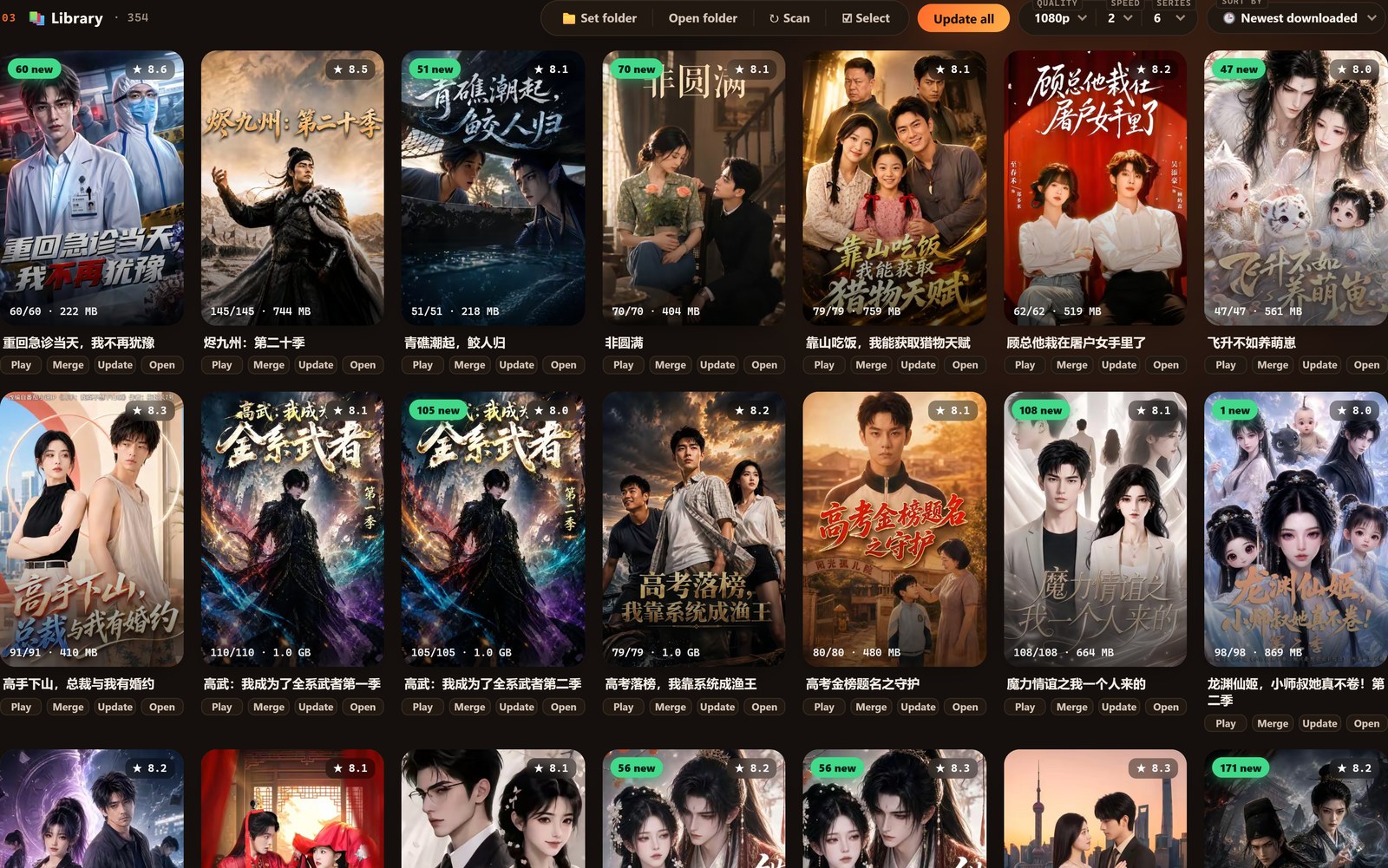
Pull just the episode range your recap actually needs into a separate project folder before importing — CapCut handles a handful of source files far more smoothly than an entire 100-episode run dropped on the timeline at once.
Step 3: Build a selects-only timeline
Don't import full episodes and trim on the timeline — scrub each source file first and pull only the beats the recap needs (a premise-setting moment, a turn, a cliffhanger), then assemble those selects in CapCut. This is faster to edit and, just as importantly, is what actually makes the result a recap rather than a re-upload:
- Voiceover or on-screen commentary that explains or reacts to what's happening, recorded or typed in your own words.
- Your own pacing — cuts, speed ramps, and captions that reshape the raw footage into something distinct from just watching the episode.
- A short overall runtime built from a handful of selects, not a scene-for-scene reconstruction of the episode.
A note on clip length and "copyright-safe"
It's tempting to look for a specific number of seconds that guarantees a clip is safe to post — there isn't one. What actually matters under most platforms' and most countries' reuse standards is how transformative the edit is: your own commentary, your own selection and pacing, and a runtime that's clearly an edit rather than a substitute for watching the source. A short clip with no added commentary isn't automatically safer than a longer one with substantial narration on top of it. Sensible defaults for a recap channel:
- Keep individual selects short and purposeful — enough to make the point, not enough to replace the scene.
- Always add your own material (voiceover, captions, reaction) rather than posting a silent cut.
- Never assemble every episode back-to-back into a full-length re-upload — that's redistribution, not a recap.
None of this is legal advice, and reuse rules vary by platform and by country — see our safety & legality guide for the honest version of where downloading itself stands.
Step 4: Export and keep the source files
Export at the platform's recommended settings for vertical video and keep your original downloaded episodes rather than deleting them after one edit — a source library you can revisit means your next recap, or a re-cut of an underperforming one, doesn't mean re-downloading from scratch. See building a drama-recap channel for how to turn this into a repeatable weekly workflow rather than a one-off edit.
Frequently asked questions
Where does the footage come from?
Hongguo Downloader batch-downloads a series as numbered 1080p MP4 files directly from the 红果 oversea catalogue — no screen recording needed.
How long should a clip be to stay copyright-safe?
There's no fixed "safe" number of seconds. What matters is how transformative the edit is — your own commentary, voiceover, and selection — not just duration. This isn't legal advice.
Do the files need converting before CapCut?
No — episodes save as standard H.264/AAC MP4 files that CapCut imports directly.
Can I upload a full recap of every episode back-to-back?
That's closer to a re-upload than a recap. Keep it to your own selected highlights plus your own commentary, for personal, non-redistributive use.
Start with clean source footage
Download Hongguo Downloader and pull 1080p episode files ready to drop straight into CapCut.